

Remote computer software is designed to provide access to a computer when you are away from it. This can be useful when you need a file, a desktop-only application, an ongoing export or render, or assistance with a setting on another computer.
At its simplest, this software lets you access a computer from another device, view its screen, control the mouse and applications, and, depending on the tool, transfer files. However, remote computer software is not a single category with identical capabilities. Different tools are designed for different purposes, so choosing based only on brand recognition or a long feature list can result in a poor fit. This guide explains what remote computer software is, when it is useful, how it differs from related tools, and which factors — security, device compatibility, performance, file transfer, and remote access features — matter most when choosing a solution.
What Is Remote Computer Software?
In practical terms, the concept is straightforward: remote computer software lets you access, view, and usually control a computer from another phone, laptop, tablet, or desktop, over the internet or a local network. You’ll see it called a few different things depending on who’s talking about it — remote desktop software, remote access software, remote PC access software, remote control computer software. In practice, these terms often overlap, although the exact features and intended use can vary between products.
An important consideration is that not every tool in this category does the same job. Some are built around full desktop control, letting you use the remote machine as if you were physically there. Others lean more toward screen sharing, quick file access, RDP-style connections, or formal IT support work. Before comparing specific products, it is useful to determine which category matches the intended use case; otherwise, the comparison may involve tools designed for fundamentally different purposes.
When Do You Actually Need It?
A useful way to assess this need is to ask: do you need the computer itself, or would a file already sitting in the cloud do the job? If it’s the second one, you probably don’t need remote computer software at all.
Common situations include the following. A remote worker needs to open a desktop-only business app that’s installed on their office PC, and there’s no version of it that runs anywhere else. A freelancer is traveling with just a laptop and suddenly needs a project file that only exists on the studio computer back home. Someone kicks off a large export, render, or backup before leaving the house and just wants to check whether it’s finished. None of these are “grab a file” problems — they’re “I need that exact machine” problems, and that’s the pattern remote computer software is built around.
It is also useful in support situations. If a family member can’t find a setting, a teammate is stuck on a piece of software, or a small team needs occasional light maintenance across a handful of devices, being able to just see and control the screen directly is usually far more practical than trying to talk someone through every single click over the phone.
Remote Computer Software vs. Screen Sharing vs. Cloud Storage vs. VPN/RDP
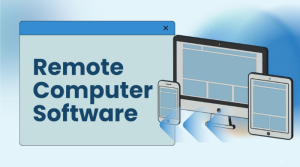
These tools get lumped together a lot, but they’re actually solving different problems, and it’s worth being clear about where each one actually shines.
Remote computer software: Best for: Accessing and controlling a computer from another device. Does well: Lets you use desktop apps, view the screen, and manage tasks remotely. Limitations: Setup, permissions, performance, and plan limits vary by tool.
Screen sharing: Best for: Meetings, demos, and live walkthroughs. Does well: Provides an easy way to show a screen during a call. Limitations: Not usually built for unattended access or full remote work.
Cloud storage: Best for: Accessing synced files. Does well: Simple for documents, images, and shared folders. Limitations: Cannot control apps or check on a running desktop task.
Help desk / RMM platform: Best for: Formal support teams and MSP workflows. Does well: Handles ticketing, technician workflows, reporting, and device management. Limitations: Often more than personal users or small teams actually need.
In summary: if all you need is a file, cloud storage is usually simpler and does the job fine. If you need to actually open and use software on a remote machine, dedicated remote computer software is the better fit. And if what you’re actually after is formal support operations — ticketing, technician queues, similar operational requirements — it’s worth looking past basic remote access tools entirely, which we’ll come back to later.
Key Factors to Weigh Before Choosing
Once you’ve confirmed remote computer software is actually the right category for your needs, the real decision comes down to a handful of factors. These are the ones that tend to separate a tool that quietly works from one that lets you down right when you need it most.
Security
This one comes first for a reason — a remote access tool has, by design, a direct line into your computer, so security can’t just be a line on a marketing page. Look at how sign-in actually works, whether the tool supports trusted devices or granular access permissions, and how easily you can remove an old or lost device from your account. If you’re setting this up for a small team, it becomes even more important to know exactly who’s able to connect to which computer, rather than assuming everyone has equal access by default.
Device Compatibility
Before anything else, double check that the tool actually supports both ends of the connection — the computer you want to control and the device you’ll be connecting from. Although this may seem obvious, it is an easy requirement to overlook. A setup that feels smooth when you’re testing laptop-to-laptop can behave completely differently the first time you actually need mobile-to-PC access from an iPhone or Android device, since touch controls and small screens introduce their own quirks that desktop-to-desktop testing won’t reveal.
Performance
One important consideration is that vendor performance claims won’t tell you how a session actually feels on hotel Wi-Fi, spotty mobile data, or a congested office network — which are common environments for remote access. The most reliable way to assess this is to test the tool, using the apps you actually rely on, from the kinds of places you expect to be connecting from. A tool that feels snappy in a controlled demo environment can perform poorly under real-world conditions.
File Transfer
File transfer should not be assumed simply because a tool provides screen control. Some remote access software focuses purely on viewing and controlling, with no real file-moving capability at all, while others build it in as a core feature. If your work regularly involves moving reports, design files, screenshots, logs, or installers between machines, treat this as something to test directly rather than assumed.
Remote Access Features: Unattended Access and Plan Limits
Unattended access — the ability to connect to a computer when nobody’s physically sitting at it — matters a lot if your use case involves reaching a machine after hours or when nobody is available to approve the connection. A remote worker who travels frequently, for instance, might need to reach their home or office PC late at night. This requires the host computer to stay powered on, stay connected, and be configured ahead of time for the right level of access, so it’s worth setting up and testing before you actually need it when access is urgently required.
It is also important to review the terms of free and paid plans carefully. “Free” can mean a lot of different things depending on the provider — personal-use-only, free-to-start with paid upgrades, a genuinely limited tier, or just a time-boxed trial dressed up as “free.” Don’t assume business use is automatically allowed, that file transfer is included by default, or that mobile access comes without restrictions. A few minutes reading the plan details up front can help avoid unexpected restrictions later.
How to Set Up Remote Computer Access
The exact steps differ a bit from tool to tool, but most remote computer access software follows roughly the same setup flow, and it is useful to follow the process systematically.
- Install the app on the host device — the computer you actually want to reach — then sign in, authorize the machine, or pair it with your account. If it asks for screen control, accessibility, or remote access permissions, grant only what your specific workflow actually needs.
- Install the app on the device you’ll be connecting from, whether that’s a phone, laptop, tablet, or another desktop.
- Run a test session while you’re still physically near the host computer. Try the apps and controls you expect to use, check screen readability, and test important features such as file transfer separately rather than assuming they will work as expected.
- Test the specific features you care about separately — file transfer, in particular, should be tested separately rather than assumed. If you plan to connect from a phone, actually try it with real touch controls instead of assuming it’ll feel the same as a laptop session.
For most everyday needs, a dedicated remote desktop app is generally simpler than manually configuring RDP or managing network rules, which is typically more appropriate for users with relevant IT experience.
Where an Everyday Remote Desktop App Fits
If what you need is regular, reliable access to a computer without building out a full IT support stack around it, an everyday remote desktop app is usually the practical middle ground. AweSun is one option worth considering for users who need PC-to-PC or mobile-to-PC access, file transfer, and cross-platform connectivity without setting up a more complex support environment.
This kind of tool tends to make the most sense for remote workers, freelancers, power users, and small teams who need to reach a computer from wherever they happen to be, but don’t need ticketing systems, MSP-style reporting, or a full enterprise device management platform layered on top. Regardless of the selected solution, the same principle applies: test it on your own devices, confirm it holds up in your actual environment, and check that permissions, file access, and plan limits genuinely match what you need before you start relying on it for real work.
When a Different Option Might Be Better
Remote computer software isn’t always the lightest or most sensible answer, and it’s worth being honest about when something else fits better. If all you actually need is documents, cloud storage or a simple file-transfer workflow is probably simpler and less to manage. If your company already has strict policies around VPN, VDI, or managed RDP, it makes sense to follow that approved route rather than layering a separate personal tool on top of it. And if what you actually want is full control over your own infrastructure, it’s worth comparing self-hosted options directly — just with the understanding that you will be responsible for the setup and ongoing maintenance yourself.
Support teams specifically should be careful not to conflate remote access with support operations — they’re related but not the same thing. If your actual need involves ticketing, technician queues, SLA reporting, endpoint monitoring, or formal MSP-style workflows, a proper help desk or RMM platform is going to serve you far better than a general remote desktop app stretched to cover a job it wasn’t built for. The objective is not to use a single tool for every remote task, but to select the method that addresses the specific requirement with minimal unnecessary complexity.
Frequently Asked Questions
Is remote computer software the same as remote desktop software?
Often, yes — remote desktop software is actually just a common type of remote computer software, and the terms get used interchangeably most of the time. That said, some tools in this broader category lean more toward file access, screen sharing, RDP, or dedicated IT support rather than full desktop control, so it’s worth checking which one you’re actually looking at.
Can I access my computer from my phone?
Yes, as long as the tool you’re using supports mobile-to-PC access. The general process is similar regardless of the provider: install the host app on the computer, install the mobile app on your phone, authorize the device, and run a real test before you actually depend on it while away from your desk.
Is remote computer software safe to use?
It can be, when it’s set up carefully — but no tool should be considered risk-free solely because it is popular or well reviewed. Strong sign-in protection, trusted-device settings where available, limited permissions, keeping the software updated, and sticking to company-approved tools for work devices all go a long way toward keeping things safe.
Do I actually need file transfer?
If your remote work regularly involves moving documents, screenshots, installers, logs, or project files between devices, then yes, it’s a feature worth prioritizing. If your needs are more about controlling an app or just checking on a screen remotely, full desktop control probably matters more to you than file transfer does.
Is free remote computer software enough?
For occasional personal use, a free tier is often sufficient. For work use, it’s worth actually checking whether the free tier allows business use, supports the devices you need, includes the specific features your workflow depends on, and has a reasonable paid path available if your needs grow beyond what the free version offers.
Final Recommendation
The most appropriate approach is to choose based on the actual task in front of you, rather than selecting a tool based on the length of its feature list. If you only need files, start with file access. If you need meetings or live walkthroughs, screen sharing is probably all you need. If you’re working inside a managed Windows environment, VPN or RDP might be the expected and already-approved route. If you need formal support operations, a help desk or RMM platform is going to serve you much better than a general-purpose remote access tool.
For practical, everyday remote PC access — controlling a computer, connecting from your phone when needed, and moving files back and forth without a lot of overhead — this is the type of use case that dedicated remote access tools are designed to address. It should be configured on the intended devices and evaluated using the actual workflow before being relied upon for important tasks. This type of practical testing provides more useful evidence than a feature comparison alone.