

In July 2025, researchers at Koi Security traced a browser hijacking campaign back to an unlikely culprit: a color picker. It had more than 100,000 downloads and Google’s verified badge, and it did exactly what it promised (The Register, 2025). It also tracked its users’ browsing. The extension had been clean for years before a quiet update turned it, and 17 similar add-ons, into spyware across roughly 2.3 million Chrome and Edge installs.
That story matters to anyone thinking about a typing tool, because typing tools sit in the most sensitive place in your browser: the text box.
Why Typing Tools Deserve a Closer Look
Any extension that types for you needs permission to interact with the pages you’re on. It has to find the cursor, enter characters and respond to your clicks. That’s the whole point of a Human Autotyper, a tool that takes text you’ve already written and types it into Google Docs, web forms or a browser editor keystroke by keystroke, at a human pace. Phrasly’s version runs as a Chrome extension, with speed adjustable from 30 to 240 words per minute plus natural pauses and optional small typos it corrects as it goes.
Useful tools often need real access. The question isn’t whether an extension has permissions. It’s whether you trust the people behind it, and whether you’ve checked.
The Numbers Behind the Worry
Google says that in 2024, fewer than 1% of installs from the Chrome Web Store were found to include malware (Google Security Blog, 2024). That’s reassuring, until you remember how many installs there are.
A Stanford and CISPA study presented at ASIA CCS 2024 counted the other way, by users affected. Between July 2020 and February 2023, about 346 million users installed what the researchers called security-noteworthy extensions. Of those, roughly 280 million installs contained malware, 63 million broke store policy and 3 million had vulnerable code.
Installs of security-noteworthy Chrome extensions, July 2020 to February 2023. Source: Hsu, Tran and Fass, ASIA CCS 2024.
Inside companies, the exposure is broad. LayerX’s 2025 Enterprise Browser Extension Security Report found 99% of enterprise users had at least one extension installed, and 53% had installed one with “high” or “critical” permission scope, meaning access to things like cookies, passwords and page content.
None of this means you should ban extensions. It means picking one deserves about as much care as signing up a new software vendor.
A Seven-Step Vetting Checklist
Run any typing extension through these checks before it goes on a work machine. Most take a couple of minutes each.
1. Find Out Who Actually Publishes It
Open the Chrome Web Store listing and look past the logo. Is there a real company name, a working website, a privacy policy and a support contact? An extension tied to an established product with paying customers has something to lose. An anonymous developer with a Gmail address and one extension doesn’t.
2. Read the Permission Prompt, Word for Word
Chrome shows what an extension can access before you install it. A typing tool will usually need to read and change data on the sites where it runs. Be wary if it also asks for things that have nothing to do with typing, like your browsing history, downloads or access to other extensions.
3. Check the Privacy Disclosures
Every listing has a privacy section describing what data the developer collects and how it’s used. Look for a plain statement about whether the text you type is sent anywhere. For a tool that handles drafts, client notes or internal documents, that answer matters more than any feature list.
4. Look at Update and Ownership History
The 2025 cases share a pattern. Koi Security’s December 2025 findings, reported by Malwarebytes, described extensions that behaved normally for about seven years before silent updates in mid-2024 turned them into spyware on some 4.3 million devices. Extensions also change hands, sometimes sold to buyers who monetize the user base. A sudden change in publisher name or a burst of updates with vague notes is worth a second look.
5. Test It in a Separate Browser Profile
Make a clean Chrome profile with no saved passwords and no work accounts signed in. Install the extension there first and try it on dummy text in a test document. You’ll learn whether it does what it claims, how it behaves, and whether anything odd shows up, without exposing real data.
6. Limit Where It Can Run
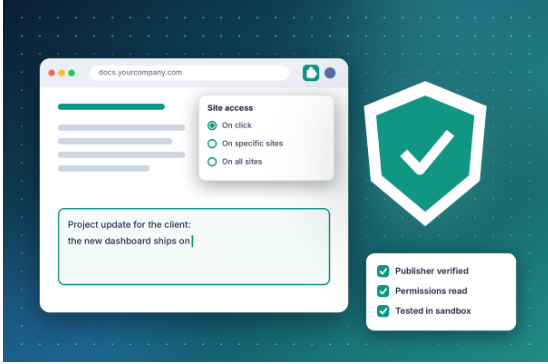
Chrome lets you set an extension’s site access to run only when you click it, only on specific sites, or everywhere. For a typing tool, “on click” or a short list of sites, such as your docs platform and the one portal that blocks pasting, is usually plenty. Less access means a smaller blast radius if something ever goes wrong.
7. Approve It Centrally and Review It Regularly
If your company manages Chrome through Google’s admin console or similar tools, add approved extensions to an allowlist and block the rest. Then put a reminder on the calendar to review that list every quarter. Google’s own advice includes removing extensions you no longer use, which costs nothing and shrinks risk right away.
Comparing a few tools side by side helps too. Phrasly has a roundup of Natural Typist alternatives that’s a reasonable place to start a shortlist before you run each option through the checks above.
Where a Vetted Typing Tool Earns Its Place
Once a tool passes, it can quietly save real time. Common business uses include:
- Recording product demos and training videos where text needs to appear at a natural pace on screen
- Filling vendor or government portals that disable pasting in long description fields
- Entering text into browser editors that scramble pasted formatting
- Cutting repetitive retyping for staff who deal with hand strain
Keep the use honest. Paste blocks on exams, identity checks and some security forms exist on purpose, so leave those alone. And an auto typer should never be used to misrepresent who wrote a document. That’s a policy question, and it should be in your acceptable use guidelines next to the allowlist.
Trust Is Earned, Then Checked Again
The color picker in July 2025 passed every surface test. It had downloads, ratings, a verified badge and features that worked. What it didn’t have was anyone watching what changed after people installed it.
That’s the lesson for any typing extension, or any extension at all. Vet the publisher, read the permissions, test in a sandbox, restrict where it runs, and put it on a list someone actually reviews. Do that and a good typing tool becomes what it should be: a small, dependable time saver rather than an open door into your team’s browsers.