

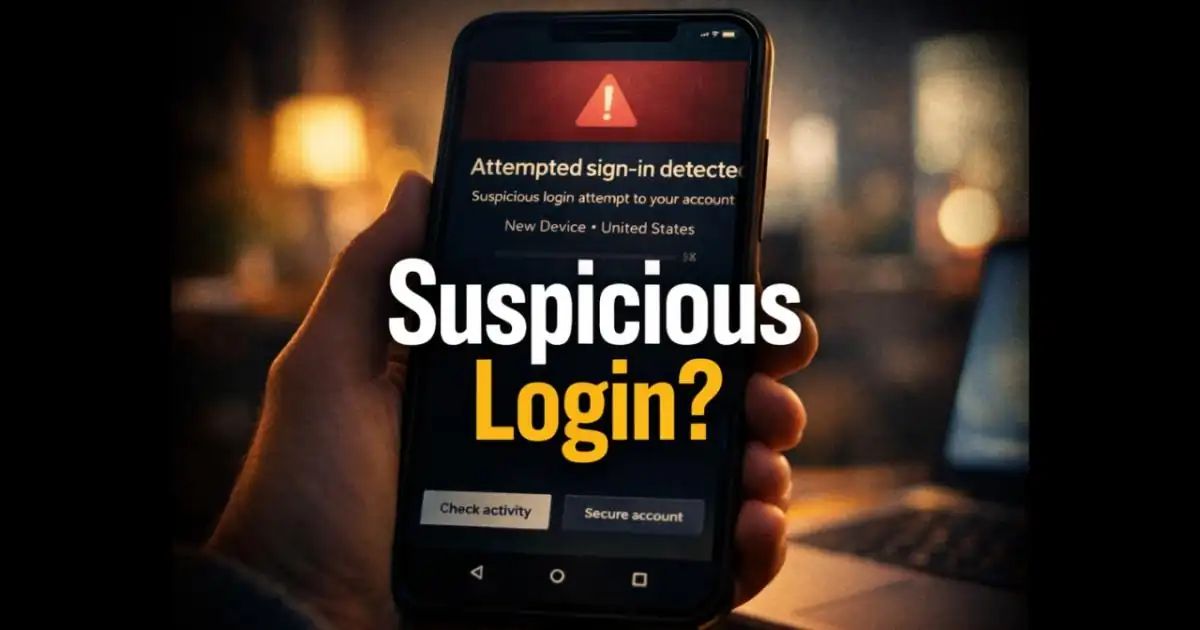
You check your phone and notice an email saying someone tried to access your account from an unfamiliar device. The location looks strange, and you haven’t signed in anywhere new. Your first thought might be that someone has stolen your password. But an unexpected login alert doesn’t always mean your account has been hacked.
Online services send security notifications for several reasons, including failed password attempts, unfamiliar devices, and unusual sign-in activity. Some warnings are genuine, while others are fake messages designed to steal your information. Understanding the difference can help you protect your account without making a rushed decision.
Why Do You Receive Unexpected Login Alerts?
Most major online platforms monitor account activity to identify suspicious behavior. When a login attempt differs from your normal activity, the service may send a notification asking you to review it. For example, you might receive an alert after signing in from a new phone, using a different internet connection, or traveling to another city. A VPN can also make your connection appear to come from a different location.
But not every alert has an innocent explanation. Someone may be trying to access your account using a password obtained through phishing, malware, or an earlier data breach.
Sometimes attackers test exposed passwords against several unrelated websites. This technique is known as a credential stuffing attack. It becomes particularly dangerous when people use the same password across multiple services, allowing a breach on one platform to put other accounts at risk. The important thing is to determine whether the warning relates to an attempted login or an actual successful sign-in. Those situations require different levels of attention.
First, Check Whether the Security Alert Is Genuine
A message claiming your account is in danger can create a sense of urgency. Criminals know this and sometimes send fake security notifications that look like messages from trusted companies. These emails may contain familiar logos, official-looking colors, and warnings such as “Your account will be suspended unless you verify your identity.”
Instead of clicking a link inside the message, open the company’s official app or type its website address directly into your browser. Navigate to the security or account activity section and look for the reported event. If the service shows no matching activity, the email may be fraudulent, although some services do not display every unsuccessful attempt.
Pay attention to requests for sensitive information. A legitimate security process should not require you to send your password or verification code to someone through an email, phone call, or chat.
A useful rule: Treat an unexpected security message as a reason to check your account, not as an instruction to immediately follow whatever the message says.
What Should You Do If Someone Tried to Access Your Account?
Once you’ve confirmed that the alert is genuine, examine the available details. Look at the time, device, approximate location, and whether the login succeeded.
If the service reports an unsuccessful attempt, your account may still be secure. But the warning deserves attention, especially when you don’t recognize the activity.
Start by reviewing your recent sign-ins. Many platforms let you see which devices have accessed your account and provide an option to end unfamiliar sessions. Next, consider changing your password. This is particularly important if you’ve used it elsewhere, entered it on a suspicious website, or have reason to believe it was exposed.
Choose a long, unique password that you haven’t used on another account. A password manager can help you create and store different passwords without having to remember each one. If you discover an unauthorized successful login, take additional precautions. Sign out of other sessions using the account’s security settings, review recovery information, and check whether anyone has changed your account details.
Remember that changing your password may not automatically close every active session. Use the service’s sign-out or session-revocation options where available.
Never Approve a Login Request You Didn’t Start
Two-factor authentication adds another security check after your password. Depending on the service, this might involve an authenticator app, security key, passkey, or approval notification on your phone.
These additional checks can prevent unauthorized access, but users still need to recognize suspicious requests. Imagine you’re watching a movie when your phone suddenly asks you to approve a login. You haven’t opened that service, yet the same request appears several more times.
Repeated unexpected approval requests may indicate an MFA fatigue attack. In this type of attack, someone attempts to pressure or confuse the account owner into approving authentication they never initiated. The safest response is to reject the request and investigate the account through its official settings. Don’t approve a notification merely to make it disappear.
For stronger protection, consider using passkeys or hardware security keys where supported. These methods can provide better resistance to phishing than approval-based authentication. If the account belongs to your employer, report unexpected authentication requests to your IT or security team.
Check Whether Anything Has Changed Inside Your Account
A suspicious login alert is only one piece of information. The activity inside your account may tell you more about what happened. For an email account, inspect recently sent messages, recovery addresses, connected applications, and forwarding rules. An attacker who gains access to an inbox may create a rule that quietly sends copies of incoming emails to another address.
For social media, review recent posts, direct messages, linked devices, and account settings. Unexpected activity could indicate that someone accessed your profile without permission. Shopping and financial accounts require special attention. Check saved payment methods, recent purchases, delivery addresses, and transaction history. Contact the service or your financial institution immediately if you identify unauthorized payments.
You should also review any third-party apps connected to the affected account. Remove access for applications you don’t recognize or no longer use. These checks matter because restoring your password doesn’t necessarily reverse changes made during an earlier unauthorized session.
Why Your Email Account Deserves Extra Protection
People often focus on banking apps or social media profiles when thinking about online security. Yet their main email account may be even more important. Email addresses are commonly used to reset passwords, verify identities, and recover access to other online services. Someone who controls your inbox may be able to interfere with several accounts linked to it.
For example, an attacker who gains access to your email could request password resets for a shopping account or attempt to recover a social media profile. Whether the attempt succeeds depends on the service’s additional security checks.
This is why your main email account should have its own unique password and strong authentication protection. Keep your recovery phone number and backup email address updated. Store any recovery codes somewhere secure and separate from the account they protect.
If you manage multiple online services, regularly checking the security settings of your primary email can prevent a single compromised account from creating wider problems.
How Can You Reduce Future Login Alerts and Account Risks?
No security setting can guarantee that criminals will stop attempting to access an account. You can, though, make those attempts much less likely to succeed. Start with your passwords. Each important account should have a different one, particularly your email, financial, shopping, and workplace accounts. This prevents an exposed password from automatically becoming useful elsewhere.
Enable two-factor authentication wherever possible, choosing phishing-resistant options when available. Keep your operating system, browser, and installed applications updated so known security weaknesses are less likely to be exploited. Be selective about browser extensions and downloaded software. Malicious programs can sometimes collect passwords, authentication details, or other sensitive information stored on a device.
Review connected applications and active sessions occasionally, particularly for accounts containing personal or financial information. Remove access you no longer need. It also helps to learn how your online services normally communicate. When you recognize genuine security notifications, you’re less likely to fall for an urgent-looking fake message.
For businesses, employee training should cover unusual login alerts, unexpected verification requests, and the proper way to report suspicious activity. Staff members need a clear reporting process so they aren’t forced to make security decisions alone.
When Should You Contact Support?
Some security warnings can be resolved by reviewing account settings. Others require help from the service provider or your organization’s security team. Contact official support when you cannot sign in, notice unauthorized transactions, discover changed recovery details, or continue receiving suspicious alerts after securing your account. If you suspect malware on your device, use trusted security software and investigate the device before entering new passwords on it.
For work accounts, report suspected unauthorized access promptly. Even a seemingly minor login incident may affect company files, customer information, or connected systems. Keep a record of relevant alerts and suspicious account activity. Screenshots and notification details can help a support team understand what happened.
Final Thoughts
An unfamiliar login alert doesn’t automatically mean someone has taken control of your account. It does mean you should verify the warning, review recent activity, and make sure your security settings are working as expected.
Avoid reacting through links in unexpected messages. Go directly to the service, inspect your sessions, and secure anything that looks unfamiliar. A few careful checks can help you identify genuine threats, avoid phishing scams, and protect the accounts you rely on every day.