

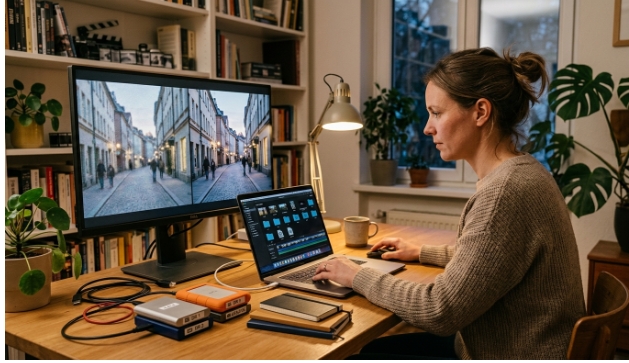
Most video libraries do not become useless overnight. They become awkward one clip at a time. A recording that looked acceptable on a small laptop can appear soft on a modern television. A compressed social clip may show block noise when reused in a presentation. An otherwise valuable interview can feel dated because its resolution, contrast and delivery format no longer match the screen showing it.
The sensible response is not to process every file with the strongest setting available. It is to decide what the footage needs, preserve the source, and apply the lightest intervention that makes the clip usable again. That approach protects authenticity, keeps storage under control and avoids spending hours on material that will only ever appear in a small window.
Begin With Value, Not Resolution
Before choosing a tool, sort the library by purpose. Separate irreplaceable originals from replaceable marketing clips, casual recordings and duplicates. Then ask where each video will be seen. A short clip destined for a messaging app does not need the same treatment as an interview that will fill a 4K conference screen.
This first pass also reveals problems that enhancement cannot solve. Missing focus, severe camera shake, clipped audio and frames hidden by motion blur are not simply resolution issues. AI can reduce noise and reconstruct plausible texture, but it cannot recover a face that was never in focus or restore a highlight recorded as featureless white. Mark those limits early so the final result remains honest.
Create a read-only master copy before doing anything else. Work from a duplicate, keep the original filename in the metadata, and record the intended output. A small note such as “family archive, television playback, natural grain retained” is more useful than a folder full of unexplained exports.
Use a Browser Pass for Everyday Footage
A large share of an ordinary library only needs a modest lift: less compression noise, firmer edges and a resolution that suits current screens. This is where a browser workflow is useful. It avoids a local installation and moves processing to cloud GPUs, which means the computer mainly handles uploading, previewing and downloading.
For clips that need up to a twofold increase, an AI Video Enhancer can provide a practical first pass. UniFab’s online page lists examples such as 480p to 960p and 1080p to 2160p/4K, with MP4 as the default export. The service runs in a modern browser and accepts common inputs including MP4, AVI and MOV. That makes it suitable for short family clips, old web videos and presentation footage when a deeper restoration would be unnecessary.
The important control is restraint. Review faces, text, patterned clothing, foliage and fine lines at full size. If sharpening creates bright outlines or skin begins to look waxy, reduce the intervention. A convincing result should look like a better transfer of the same recording, not a newly invented scene.
Preserve Texture Instead of Chasing Perfect Surfaces
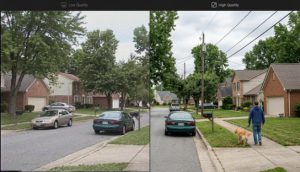
Older recordings have a visual character created by their camera, tape, compression and lighting. Some grain is evidence of the source rather than a defect. Removing every trace of it can flatten faces and turn walls, fabric and sky into smooth artificial surfaces.
A useful review method is to compare three frames: one with little movement, one with fast movement and one with a face or textured object. The still frame reveals oversharpening. The moving frame reveals flicker and unstable detail. The face or textured object reveals whether the process has replaced natural variation with plastic smoothness.
Audio should also remain separate from the picture decision. If the image improves but the soundtrack still contains hum or uneven volume, treat that as its own restoration task. Re-encoding audio repeatedly alongside experimental video exports can introduce avoidable loss.
Four-stage decision path for assessing and enhancing an old video
Reserve Deep Upscaling for High-Value Sources
Some footage deserves more than a quick browser pass. A documentary interview, a short film master, an important performance or a carefully digitised tape may need output beyond 4K, scene-specific treatment or a local workflow that avoids uploading a large source. These are good reasons to move from convenient enhancement to dedicated upscaling.
UniFab Video Upscaler provides separate local and cloud routes. Its product page describes local output up to 16K and FabCloud output up to 4K, with Equinox, Vellum, Kairo and Titanus among the named models. The local route uses the computer’s GPU and avoids cloud queues and credits; the cloud route removes the need for suitable RTX hardware and supports uploads up to 10GB.
Higher output is not automatically better. If the source is a heavily compressed 360p clip, exporting at 16K creates a much larger file without creating genuine captured detail. Deep upscaling makes more sense when the source has recoverable structure, the viewing size is large, and the material has enough value to justify careful review.
Build One Master and Several Delivery Copies
Once a result passes review, save a high-quality enhanced master and create smaller delivery copies from it. Do not repeatedly process a compressed social export for every new platform. Each generation can add artifacts, while a preserved master gives future encodes a cleaner starting point.
Use filenames that describe the source and treatment without making claims the image cannot support. A pattern such as originalname_enhanced-2x_master is clearer than final-perfect-new. Store the processing date, tool route and chosen resolution in a simple text record. If a future screen or platform requires another format, the next person can see what has already been done.
Keep at least two copies of irreplaceable material on different devices, and consider one copy in another physical location. Enhancement improves access; it is not a backup strategy. The original, the enhanced master and the delivery files each have a different role.
A Responsible Restoration Checklist
A reliable library project can be managed with six questions:
Is the source irreplaceable, and has it been duplicated before processing?
Where will the finished clip be viewed, and what resolution is actually required?
Is the main fault softness, noise, colour, motion, audio or a combination?
Does a twofold browser enhancement solve the problem without visible artifacts?
Is the footage valuable enough to justify local processing or a deeper upscale?
Have the original, enhanced master and delivery copies been labelled and backed up?
This checklist prevents the two most common mistakes: applying expensive processing to low-value clips, and applying aggressive settings to valuable footage before anyone has protected the source.
What a Good Result Should Look Like
A successful enhancement rarely announces itself. Edges are easier to read, noise is less distracting and the clip holds together on a larger display, yet it still looks like the same recording. Skin retains texture. Fine patterns do not shimmer. Movement does not produce newly invented detail from frame to frame.
That standard is more useful than a maximum-resolution label. Future-proofing is not a promise that an old clip will become native modern footage. It is a disciplined way to preserve what the source contains, make it easier to watch and keep a clear path for future delivery needs.
Final Thoughts
An older video library is usually worth more than its current presentation suggests. The practical route is to protect the originals, sort clips by value, use modest browser enhancement for everyday needs and reserve deeper upscaling for material that will benefit from the extra control. Keep natural texture, review movement as carefully as still frames, and preserve one strong master instead of creating endless unexplained exports. That process saves more footage—and more time—than simply choosing the largest output setting.